Compare five iPhone songwriting apps
Español · Français · Português (Brasil)
Cadence publishes this guide. The comparison uses public product documentation and store listings. Test the features you need on your device before committing to a project or plan.
| App | Start here if you need | What to try on your phone |
|---|---|---|
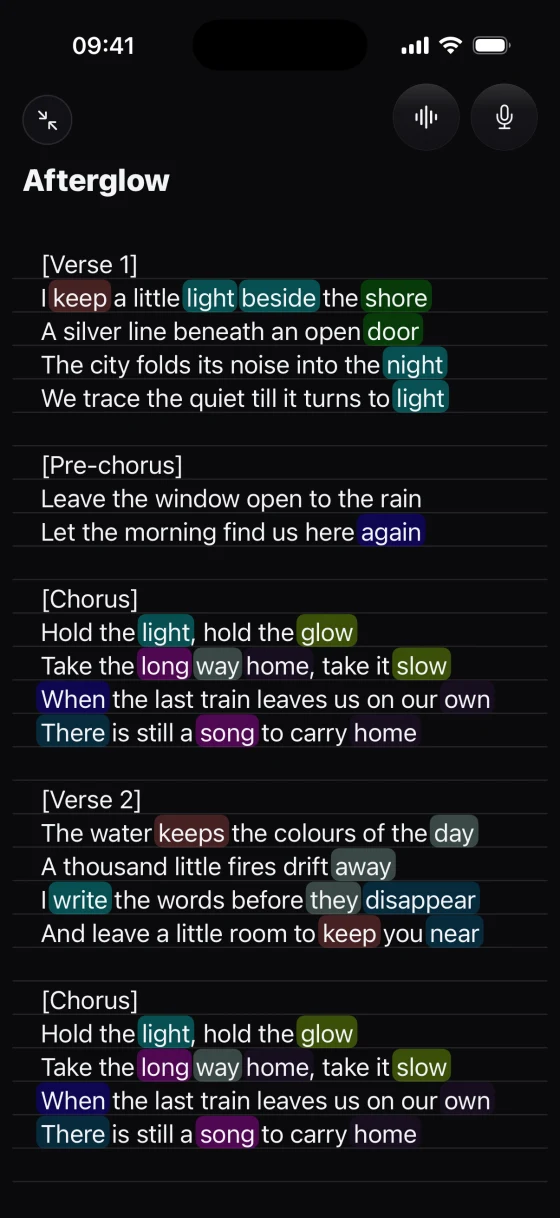
| Cadence | Lyrics and rhymes beside an imported beat, with recorded takes and an arrangement path | Loop four bars, write over them, save two takes and compare them. Then inspect the mix and stems workflow. |
| SongRight | Song notes, lyric drafts, rhyme support and a project vault | Create a note and check how the sampler or MIDI keyboard fits around the lyric. |
| Demo | Playable chord progressions and ideas you can build into an audio demo | Loop a progression, add a voice part and check which mix, MIDI or chord-sheet export you need. |
| Song-Writer | Chords above lyrics, section recordings and Nashville numbers | Chart a verse and check how the chord picker, diagrams and printed chart fit your session. |
| GarageBand | Touch Instruments, audio recording and track-based production | Build an instrumental and record a vocal. Check how you want to keep the lyric within reach. |
SongRight and Song-Writer are separate apps. Check each storefront for device compatibility, current pricing and export access.
How to write a song on iPhone
- Bring one idea. Start a draft with four lines, a Voice Memo or an instrumental you have permission to use.
- Loop the section. In Cadence, load the beat and set two loop points. Try the line ending out loud and adjust it before recording.
- Keep two takes. Record a straight delivery and one with a different rhythmic landing. Listen back and save the strongest line with its take.
- Check the handoff. If you finish in another DAW, check whether you need a single demo or aligned stems. Open a test export before moving your main project.
See the beat-first walkthrough with video and transcript, or view Cadence on the App Store.
Compare the apps with one ten-minute session
Use the same four lines, spoken memo and instrumental in each app. Time how long it takes to have the words and the recording together. Record two deliveries, then reopen the project and find both versions. If your phone is often offline, save the project first and repeat the reopen test in airplane mode.
Finish by testing your actual handoff: a producer may need aligned stems, while a bandmate might need a chord chart. Write down any extra app or plan you needed. Android users can run the same exercise with our Android songwriting app comparison.
Check the same session on iPad
If you write on iPhone and finish on iPad, use the same small project on both devices before relying on that workflow. Check whether you can view the words beside the audio, find an earlier take, and open a test export. Test project and audio transfer separately. A lyric appearing on a second device does not prove that the recordings arrived with it. If you mostly finish at a desk, verify the exported file in the DAW you use there.
What can you do for free?
GarageBand is Apple’s free recording and instrument workspace. Cadence currently starts with three free notes. Pro unlocks unlimited new work and the full Draft-to-DAW workflow, including exports. To decide what you can finish without paying, see the free songwriting app and plan comparison. Check the current in-app offer before paying.
Sources
- Cadence · App StoreChecked 2026-11-23
- SongRight · App StoreChecked 2026-11-23
- Demo · App StoreChecked 2026-11-23
- Song-Writer · App StoreChecked 2026-11-23
- GarageBand for iPhone · Apple user guideChecked 2026-11-23