Explore the workspace. Follow the steps below. Existing app imagery; controls may differ by version.
What would you like to do?
01
Start a song and find your tools
Find it Library → New; open a song to reach its editor.
Create a note from New, give it a title and tap the writing area to begin. Reopen an existing song from the Library when you want to continue.
Use Enter fullscreen (the expand button) to open the focused writing view. Open Song actions, the + / quick-actions button, for Rhymes, Memo, Edit, Beat and Share. Tray and radial layouts expose the same groups.
Open Settings from the Library for persistent preferences. Use Find a setting when you know the tool’s name but not its category.
What happens next: You have a named song with its lyric and recordings kept together.
Settings → Appearance → Quick actions menu lets you choose Tray or Radial. Button position can differ between normal and fullscreen writing.
Find it Song editor → R / recording button; Song actions → Memo opens the memo controls.
Open the song the idea belongs to. Tap R, or Record take in the recording area. Allow microphone access if your device asks.
Capture the melody, spoken line or freestyle. Tap Stop to finish the recording before moving on.
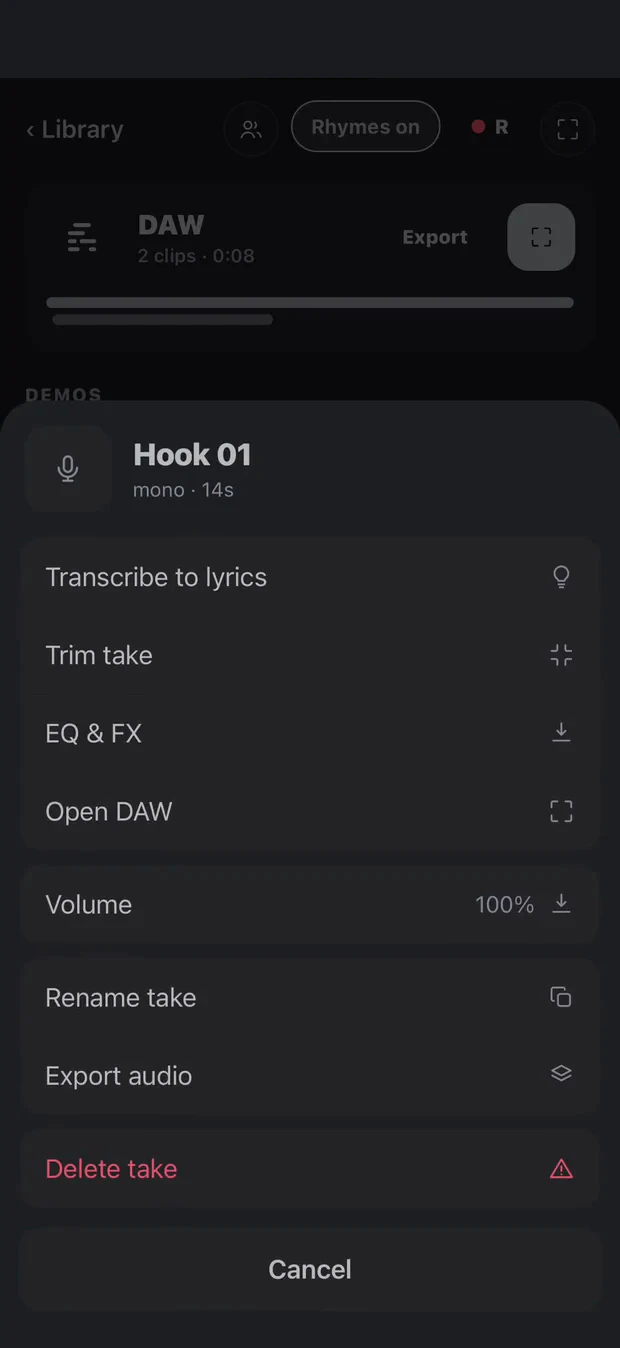
Find the saved take in the song’s DEMOS area or Memo sheet. Tap it to listen; hold the take or use its actions button to rename, trim or work with it.
What happens next: A saved audio take stays attached to this song. Recording a memo does not require arranging the whole song first.
Settings → Recording & Audio contains microphone and recording-quality preferences. Check the active input when using headphones or an external microphone.
Find it Song → Add sound from video or files; or share an audio file into Cadence from another app.
For a memo in another app, use that app’s Share action and choose Cadence when it is available. Choose New song or the existing destination song in Cadence’s import sheet.
Inside a song, Add sound from video or files offers Files and Video library. Choose the source, then review the selected start/end range and sound name.
Choose the destination song and save the sound. Wait for import to finish, then play the resulting take to check it.
What happens next: The imported sound becomes a take you can play, transcribe or use in your draft.
To use an instrumental as the beat player rather than as a memo take, use Beat → Load beat instead. Sharing options depend on the source app and device.
Find it Library → New → Production note; Add sound inside the note.
Create a Production note and give it a useful name. Use Add sound to import a supported audio or video file, or share a supported file from another app into Cadence.
Listen to each sound and add its own caption. Record the source and what you want to try in your next production session.
Choose the useful range and open the sound’s actions. Select Export sample for that range, or Export original audio to share the original recording.
Save the output and check it plays in your destination DAW. Keep the original capture and any permission details with your collection.
What happens next: You have sounds with context and an export you can audition in a production session.
Controls checked against app source on 23 October 2026. Source-app sharing, supported files and availability vary by installed build. A web link is not a local audio or video file, and importing a sound does not grant a licence to release it.
Find it Hold a saved take, or open its actions → Transcribe to lyrics.
Start with a saved or imported vocal take. Open its actions and choose Transcribe to lyrics.
Allow the first-use resource preparation to finish. The take shows Preparing or Transcribing while the job runs.
Review the transcript and use the available add-to-note or copy action. Correct names, punctuation and unclear words by listening back to the recording.
What happens next: Your recorded words can become a lyric draft; the recording remains available to check against.
Transcription availability depends on the installed build, device and resources. A transcript is a starting point to edit, especially with singing, background music or unclear speech.
Existing Cadence capture. Control placement may differ from your installed version.
Find it Fullscreen editor → Song actions → Edit → Syllables; or Library → Settings → Writing & Rhymes → Syllable counter.
Turn on Syllables in the editor’s Edit actions, or enable Syllable counter in Settings.
Put the cursor on the line you are writing. Watch that line’s count as you edit; the song’s overall word/line/syllable statistics are a separate summary.
Read or sing the line over the beat. Compare two versions and use the count to spot a crowded line, then choose by what you can actually perform.
What happens next: The current line’s syllable count is visible while you write.
Syllable counter and Syllable-level highlights are different preferences. Counts are pronunciation-based estimates; accent, elision and sung delivery can change what you hear.
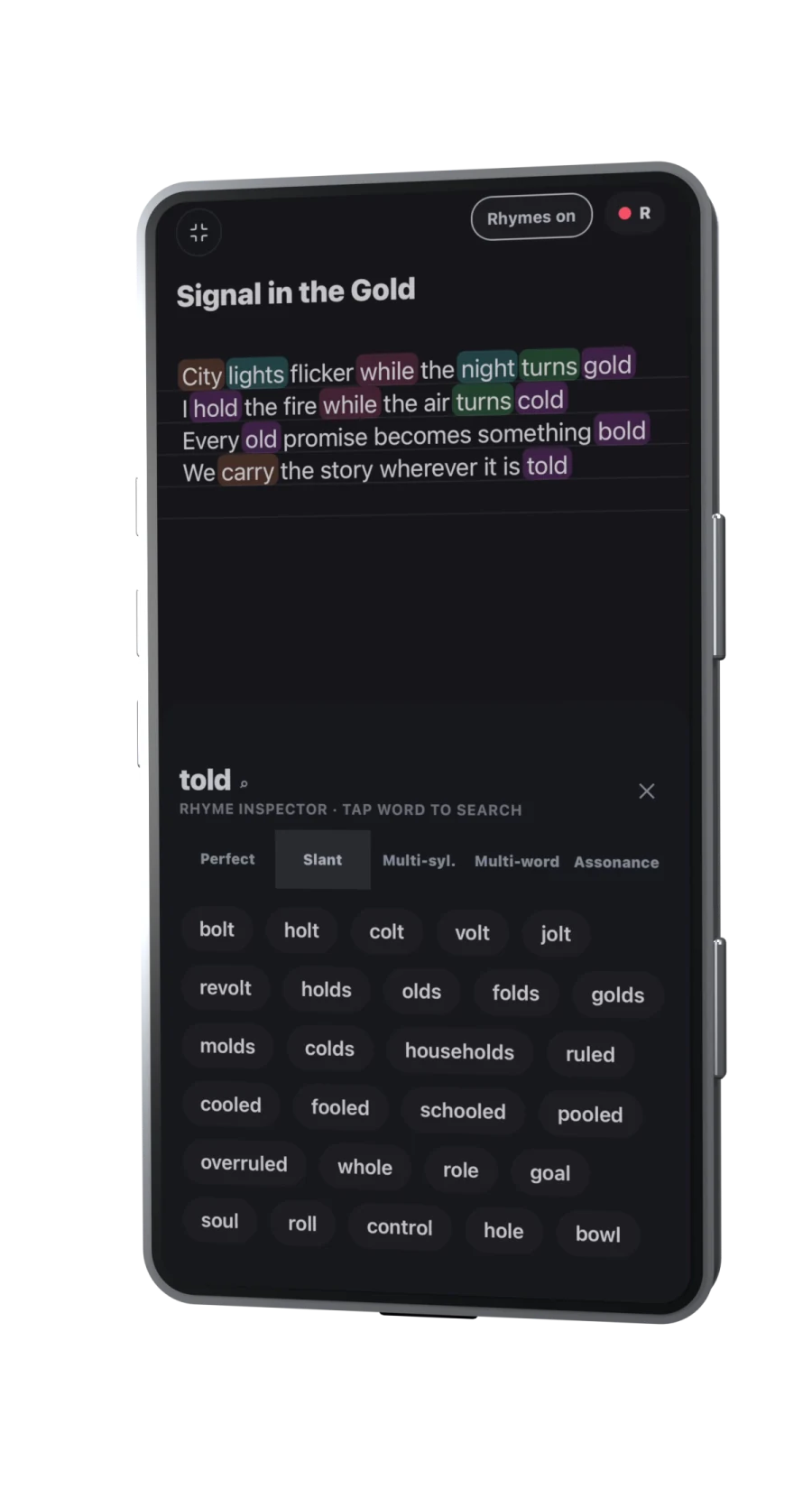
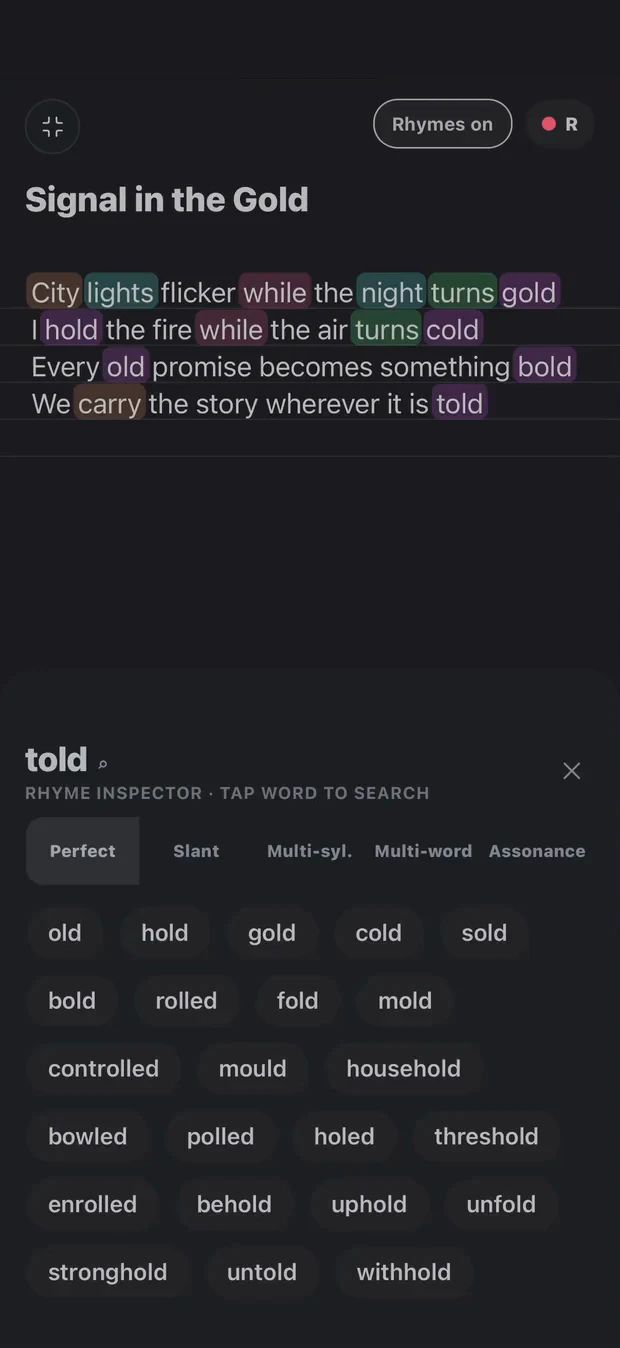
Find it Fullscreen editor → place the cursor in a word or select text → Song actions → Rhymes.
Choose the word in your lyric before opening Rhymes. The inspector uses the cursor or selected text as its starting point.
Try Perfect, Slant, Multi-syllable, Multi-word or Assonance. Tap the word/search area at the top to enter a different word without first writing it into the lyric.
Say a candidate out loud, then tap it to use it in the editor. Check the replacement and surrounding phrase; use Undo from Edit if you prefer the original.
What happens next: You can browse by sound and return a chosen suggestion to your draft.
Rhymes on / Rhymes off toggles the coloured highlighting in the editor. It does not open the inspector. For a phrase search, check the Multi-word target and its widen/narrow controls before choosing a result.
Existing Cadence capture. Control placement may differ from your installed version.
Find it Library → Settings → Languages → Downloadable languages → Suggestion order.
Download the language you want while connected. English is built in; additional app packs have their own download and availability controls.
In Suggestion order, use ↑ and ↓ beside a language to move it earlier or later, including relative to English. The accessible button names are Move [language] earlier and Move [language] later.
Choose Priority first to show the first available language before the next; Best match ranks languages together by rhyme quality; Alternate alternates when both have matches.
Return to your song and try a word with matches in the languages you write in. If only one language has matches, the app uses those available results.
What happens next: Your chosen language priority and mixing mode guide how suggestions are presented.
Native and Addition set the initial priority relative to English until you reorder it. They do not translate the interface. Older builds placed Downloadable languages under Profile; use Find a setting → Language priority order in the current layout.
Find it Fullscreen editor → Song actions → Beat → Load beat; then the beat player’s expanded controls.
Choose an instrumental file through Load beat. After it loads, use Play/Pause and the waveform to find the passage you want to write against.
Open the expanded beat controls. Set loop A at the start and loop B at the end of the passage, then choose Play selection. Clear A–B when you want to return to a longer passage.
Use Song Map and Add song marker in the expanded controls to name useful timestamps. In the arranger, a marker can help you place a selected section at that point.
What happens next: A repeatable passage gives you time to try lines, pauses and different deliveries.
A–B boundaries refer to positions in the beat; they are separate from the section order in your draft. Use a beat you have permission to use.
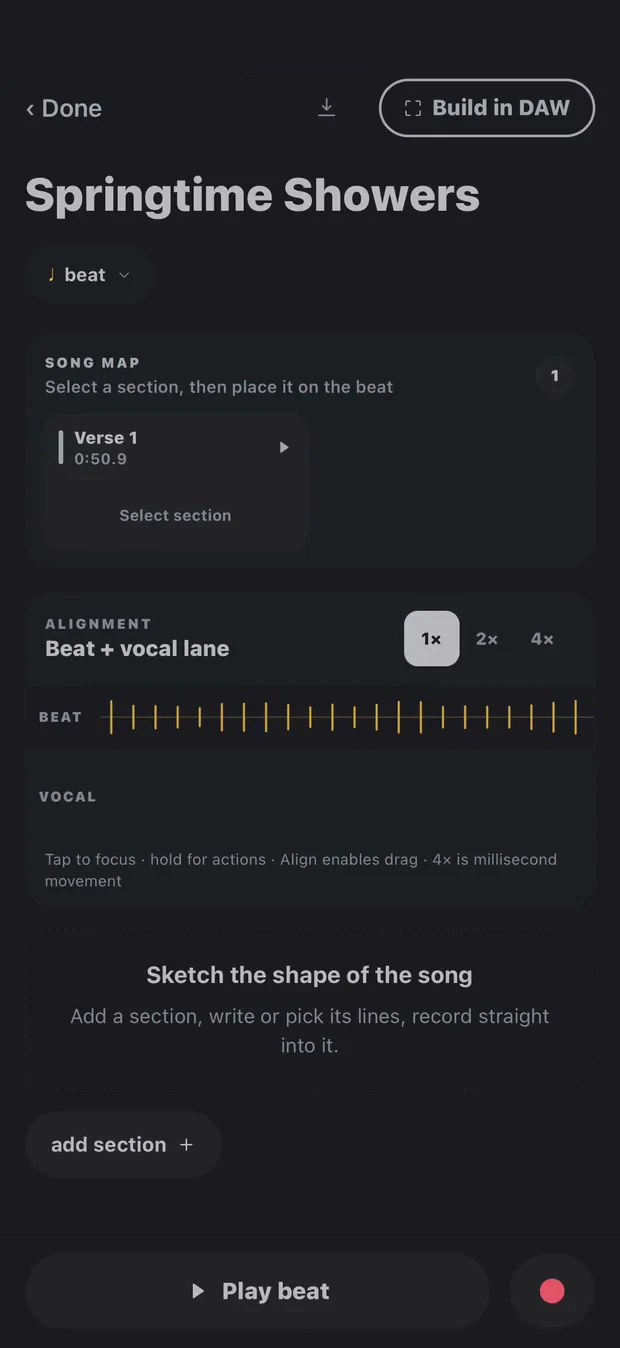
Find it Open a song → Arrange into a song draft. Draft Demo and DAW creation require Pro.
Add a section and choose its type, such as Intro, Verse, Hook, Bridge or Outro. Use the lyric picker to choose the first and last lines belonging to it.
Hold the section’s grip to drag it into order. Screen-reader users can use the section’s reorder actions to move it up or down.
Open the section’s ⋯ controls to adjust length and air before the section. Set tempo/grid and check placement against the beat rather than relying only on the labels.
Play the draft and check the transitions. Section lyric previews reflect the song’s lyric; return to the editor when the words themselves need changing.
What happens next: You have a playable section plan rather than a single undivided block of lyrics.
Removing a section keeps the recordings and offers an undo action. Check the selected section before changing its timing or words.
Existing Cadence capture. Control placement may differ from your installed version.
Find it Arrange into a song draft → select a section → red recording control.
Focus the section you want to work on. Check its lyric range, beat position and tempo before recording.
Use Record into the focused section. Follow the recording cue, perform that passage and stop to save the take. You can work on the hook before the verse; recording order need not be song order.
Tap the section’s take chip to assign a saved take or choose another candidate. Replay the section with the beat before deciding which take to keep selected.
Use take actions to trim or align the chosen placement. The earlier/later controls make small timing adjustments; listen to the surrounding section after changing them.
What happens next: Each section can have its own selected performance, so you can improve one passage without performing the entire song again.
A section with no assigned take cannot contribute that vocal to the built demo. Check the selected take for every section before building in the DAW.
Find it Arranger header → Build in DAW. This opens the multitrack workspace inside Cadence.
Check section order, timing and selected takes in the arranger. Tap Build in DAW to create the arrangement’s audio clips in the song’s DAW workspace.
If you have already built this draft, read Update DAW from draft? before confirming. Updating replaces clips generated from that draft, including their DAW timing and selected audio; removed sections lose their generated clips.
Open the DAW and play through the result. Manually added clips and their mixer settings are retained by this update, but check the resulting arrangement before continuing.
What happens next: The section choices become clips you can work with in Cadence’s DAW.
Build in DAW is an internal handoff, not a Logic, Ableton or other DAW project export. Use WAV stems when you want to continue in another recording app.
Find it Song → DAW card / Open DAW; mixer button → channel and effects controls.
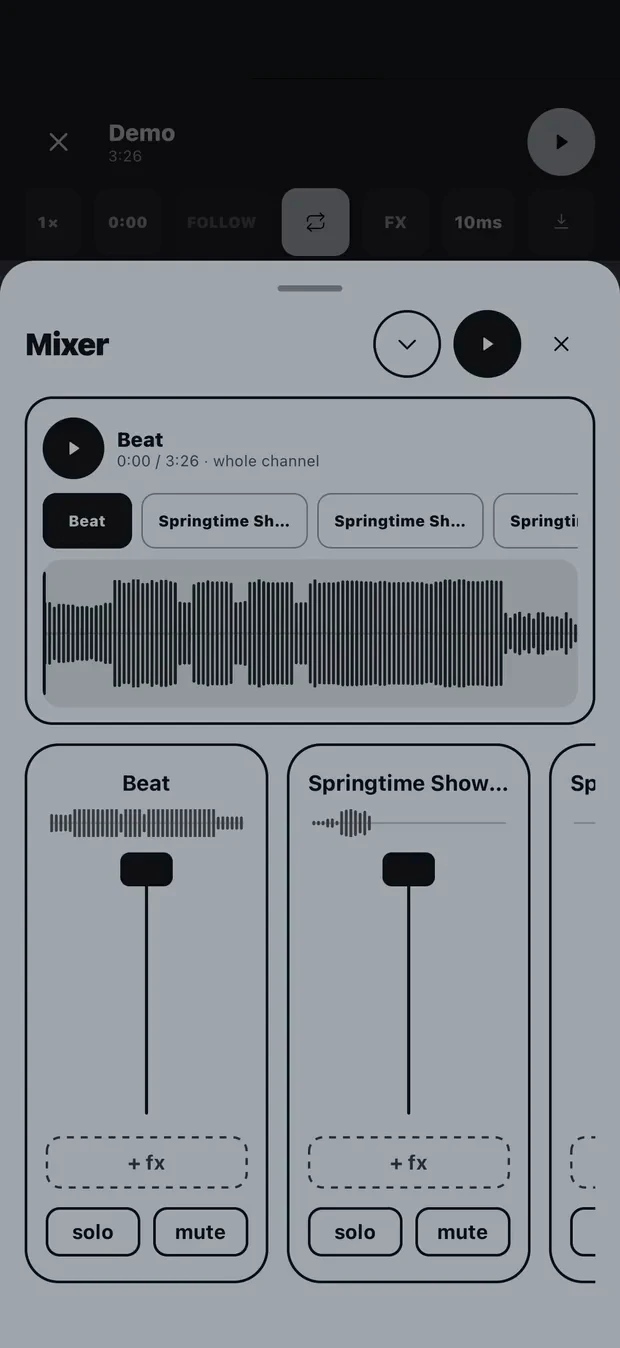
Open the song’s DAW workspace. Tap the track label to arm it (choose the recording destination), set the playhead, check the input and use Record into DAW. Stop before changing the arrangement.
Select a clip to reveal its trim, move, duplicate, mute and loop controls. Use transport Play/Pause to hear the change in context.
Open the mixer and effects controls to adjust the intended channel. Use mute/solo to identify what you are hearing, then compare Dry and Wet when auditioning effects.
Return to the complete mix before exporting. Headphone latency calibration is available from the DAW controls when recording timing needs checking.
What happens next: Your chosen takes and clips can become a rough mix you can listen to away from the writing screen.
Channel selection, solo/mute state and export availability matter. Some audio/FX controls depend on the installed native build; the app will show the controls available on that device.
Existing Cadence capture. Control placement may differ from your installed version.
Find it Song’s DAW card → Export; or the open DAW → Export audio, mix or stems.
For one listening file, choose Mixdown · one WAV from the card’s Export menu. The open DAW also offers Bounce to a Demo (full mixdown) when available.
For separate audio tracks, choose Stems · one WAV per track or Export stems (WAV · aligned at 0). Allow the render to finish and note the destination reported by the app.
Find the stem export under Files → Cadence → Exports where supported, or use the save/share destination your device presents. Keep the whole exported set together.
In your other DAW, import the stems onto separate tracks and put every file at timeline zero. They are full-length, silence-padded WAVs intended to line up; do not manually remove the leading silence from individual files.
What happens next: A mix gives you one audio file; aligned stems let you continue working with separate audio tracks in another DAW.
These are rendered audio files. They do not transfer a native DAW project, editable Cadence effects or plugin settings. Match the song tempo in the destination DAW and play the imported set to check alignment.
Find it Library → Cadence player control → Listen; Add music for a local finished track.
Open the Cadence player control in the Library. Choose Add music to import a local track and let the import complete.
Open a song and choose one of its available audio sources. Use Playlists to collect the versions you want to hear together.
Start playback in Listen. Its background playback and lock-screen controls let you continue listening with the screen locked.
Before going offline, check the files are available on the device and play correctly. Downloads and remote shared material may require a connection first.
What happens next: Your local music can be reviewed away from the writing or DAW screen.
Controls checked against app source on 23 October 2026. Listen has its own playback mode; starting another audio task or recording can interrupt it. Keep backups of important audio separately.
Find it Library → Settings → Usage; Settings → Writing routine for reminders.
Open Usage and choose a month in the activity calendar. Review creative time, sessions and active days.
Open a day to inspect writing and DAW time, characters added or removed and recorded actions. App-open time is separate from creative time.
Use the pattern to choose a manageable next session. Configure reminder days and a time under Writing routine if useful.
Use Pause tracking to stop recording new activity, or Clear history when you want to remove the recorded history.
What happens next: You can see when you worked and adjust your routine using actual activity.
Controls checked against app source on 23 October 2026. Activity measures frequency and actions, not song quality. This is separate from a lyric’s word, line and syllable summary.
Find it Library → Settings; Song actions → Share for the current lyric.
Search Find a setting for the feature you want. Writing & Rhymes, Recording & Audio and Languages hold the preferences used in this guide.
Use Song actions → Share for the current song’s lyric. Settings → Library & Export offers Share all lyrics as text and Export as .txt files for written copies.
Keep audio exports separately when moving devices or preserving a demo. The app’s cloud-sync copy describes lyrics, covers and Song Map markers; recordings, beat files and arrangements stay on the device.
What happens next: You can find the relevant preference and distinguish written copies from audio exports.
A lyric text export does not contain recordings. If a control differs from this guide, check your installed Cadence version/build and use the support link below with the feature and screen you were using.
Start with Settings → Find a setting. If your layout predates the Settings categories above, language packs may be under Profile and the editor’s quick actions may be shown around a + button. Choose the named action rather than relying on its position in a screenshot.
Draft Demo and DAW creation require Pro. Read-only or archive access can limit editing; check your account status if a control is unavailable.
Contact support or send a guide correction with the feature, device and installed Cadence version/build. Describe the label you see and the step that differs. Please keep private lyrics and recordings out of a report unless you choose to share them.