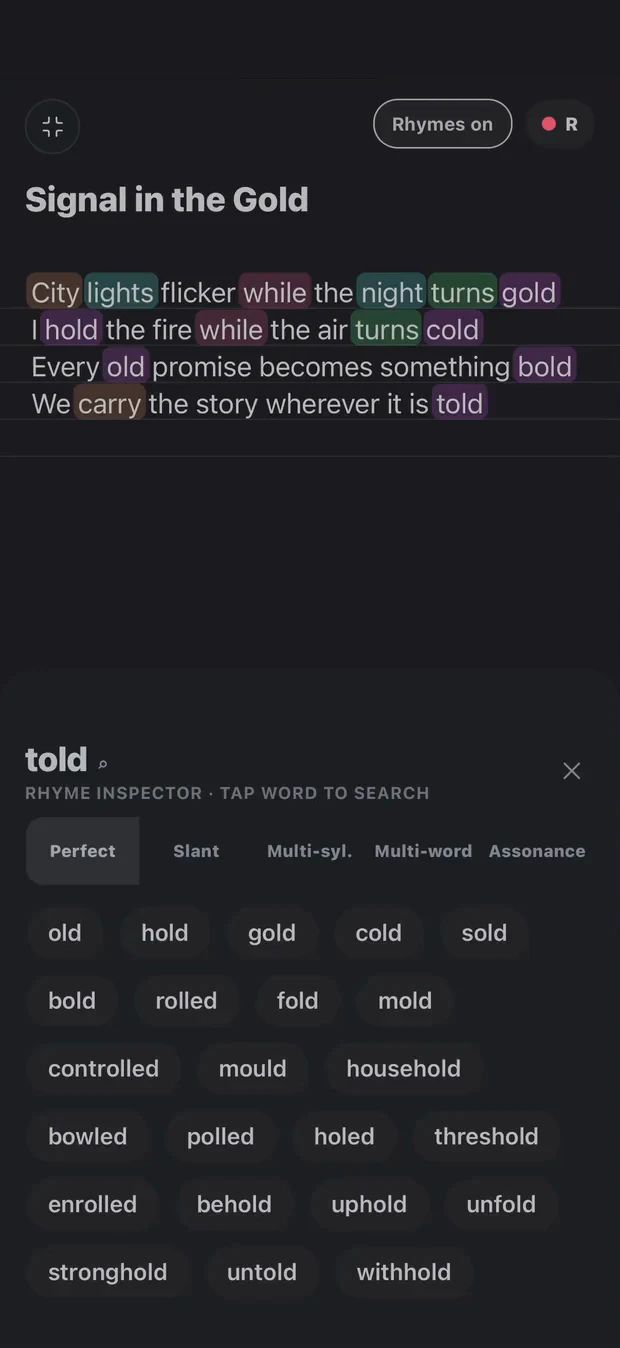
Keep the lyric, beat and recorded sections connected as you move from writing into production. Finish a demo on your phone or continue with audio in another DAW.
Cadence connects lyric writing, beat playback, Draft Demo and a multitrack workspace. For a songwriter recording over an instrumental, that means the timing decisions made in the draft can continue into the recording session.
Record takes against the timeline, position clips, balance tracks and explore vocal FX. Draft Demo and DAW creation require Pro; the store shows the current offer for your device. For Android-specific setup, use the Android songwriting guide.
Move from sections into the DAW
Load your instrumental and write the lyric beside it. Record draft takes and assign the passages you want to use.
Open Arrange to check the order and timing of the song sections.
Choose Build in DAW to carry the prepared draft into the multitrack workspace.
Record and compare takes, adjust clips and listen to the balance. When comparing Dry and Wet, use the same passage so the effect is easier to judge.
Choose a mix export for listening, or aligned stems when you need separate audio tracks for another production session.
Keep the exported set together. Cadence’s aligned WAV stems include silence so they can start at the same timeline position. Import them onto separate tracks at timeline zero, match the intended tempo and play the set before editing.
Do not trim silence independently from the front of each stem: that can remove the alignment. Audio stems are rendered recordings, not a native project transfer. They do not carry editable Cadence effects, plugin settings or a whole session format into another DAW.
Start with the job you need to finish. Cadence is useful when lyrics, a beat, recorded sections and the demo belong together. If your session depends on a particular desktop plugin, virtual instrument or collaboration format, check that requirement in the destination tool.
Yes. Cadence connects Draft Demo and arrangement to a multitrack workspace for recording, clip editing, mixing, vocal FX and export. Draft Demo and DAW creation require Pro.
Can I export Cadence stems to another DAW?
Yes. Export aligned WAV stems, keep the full set together and import each file onto its own track at timeline zero. These are rendered audio files, not a native project or plugin-settings transfer.
Should I export a mix, stems or a sample?
Use a mix to listen to the whole song, stems to work with separate aligned audio tracks, and Production notes sample export for an individual captured sound or selected range.
Your words. Your way through.
Tools for your writing. Not writing in your place.
Explore a rhyme, loop a beat, capture a take. You decide what belongs in the song. Transcription helps put your recorded words on the page; it is not a replacement for your voice.